⚙️ Settings
Under ⚙️ Settings (in the menu and via your name in the footer) you tailor your personal experience. The settings apply only to you, not to the whole family.
Account
Here you change your first name, last name and your e-mail address. Optionally you set a new password here. Your user name is displayed but cannot be changed.
Appearance
Choose between three themes:
- Light – light design with a white background.
- Dark – dark design for the evening.
- Automatic – follows the device setting (day/night).
The setting takes effect immediately, without saving, and applies per device.
Home screen
Decide which tiles appear on your home screen. Only modules that are enabled for your family show up here. Tiles you do not need are simply hidden – the home screen stays overview-friendly.
Under Quick access icons and Tiles on the home screen you sort the order via drag & drop: drag a row by the handle ☰ to the desired position. With the eye 👁 you hide individual items or show them again. The 📋 Administration tile (only for system admins) remains unchanged as the last one. Position and visibility are saved per user – the family does not see your arrangement.
- Show family tasks on the home screen – shows to-dos of the whole family (only if to-dos are enabled).
- Appointment preview – how many days ahead the appointment tile shows (1 to 14 days; days without appointments stay away).
Notifications
Planbiene can inform you via push notification about various events. Each event type can be switched on or off individually:
- To-dos assigned / completed
- Swap in the custody planner
- New calendar appointments
- Holiday planning
- Reminder for appointments
- New / changed notes
- Shopping list
- Weekly assistant
- Recipes
- Receipts
- Plants
To enable push notifications, click Enable push. The browser asks for your permission – if you grant it, you receive a test notification. If the permission is blocked by the browser, a notice appears.
Every device can enable or disable push independently – your phone and your tablet therefore have their own switches.
Calendar
Only visible to users with calendar rights (system or family administrator). Here you manage the family calendars:
- Store CalDAV addresses (name, URL, user name/password)
- Discover and test calendars
- Enable the weekly plan calendar (write planned dishes to a calendar)
- Choose the federal state for public holidays and school holidays
Alexa
Only visible when the shopping list is enabled in the account. Here you connect an Amazon Echo with your family: Alexa reads out a four-digit pairing code, which you type into this card and confirm with Link. After that every voice command lands on the shared shopping list. With Unlink the whole thing is taken down again – this affects all Echos of the household.
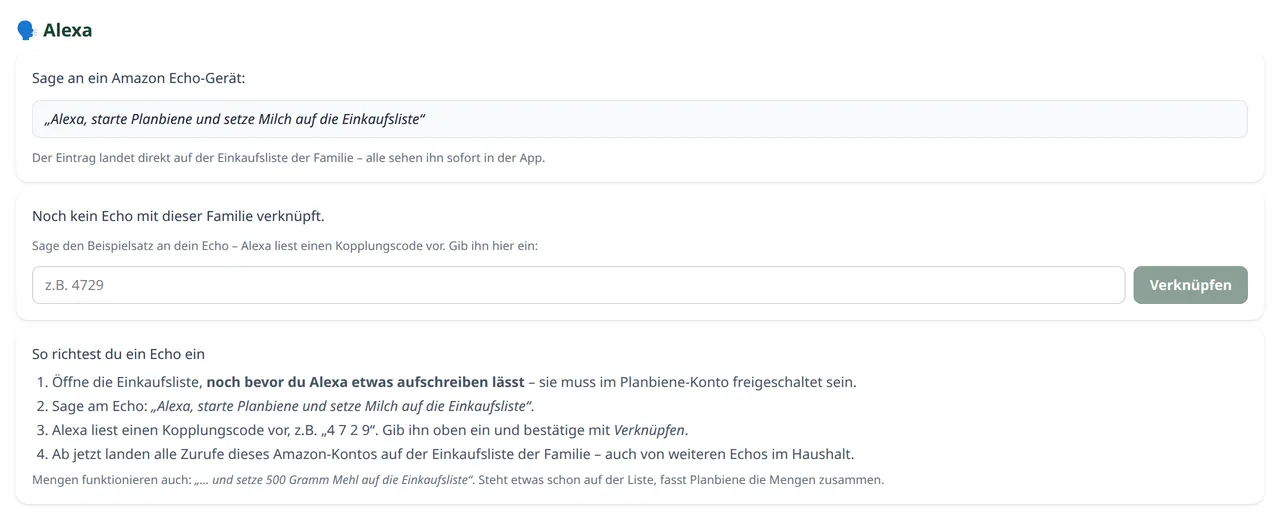
The full instructions with all example sentences are in the Handbook: Alexa.