
📝 Notes
Notes are the collection point for everything that otherwise gets lost on scraps of paper or in chat histories – from the Wi-Fi password to a reminder about the next parents' evening. Every note is visible and editable for the whole family, regardless of whom it is assigned to.
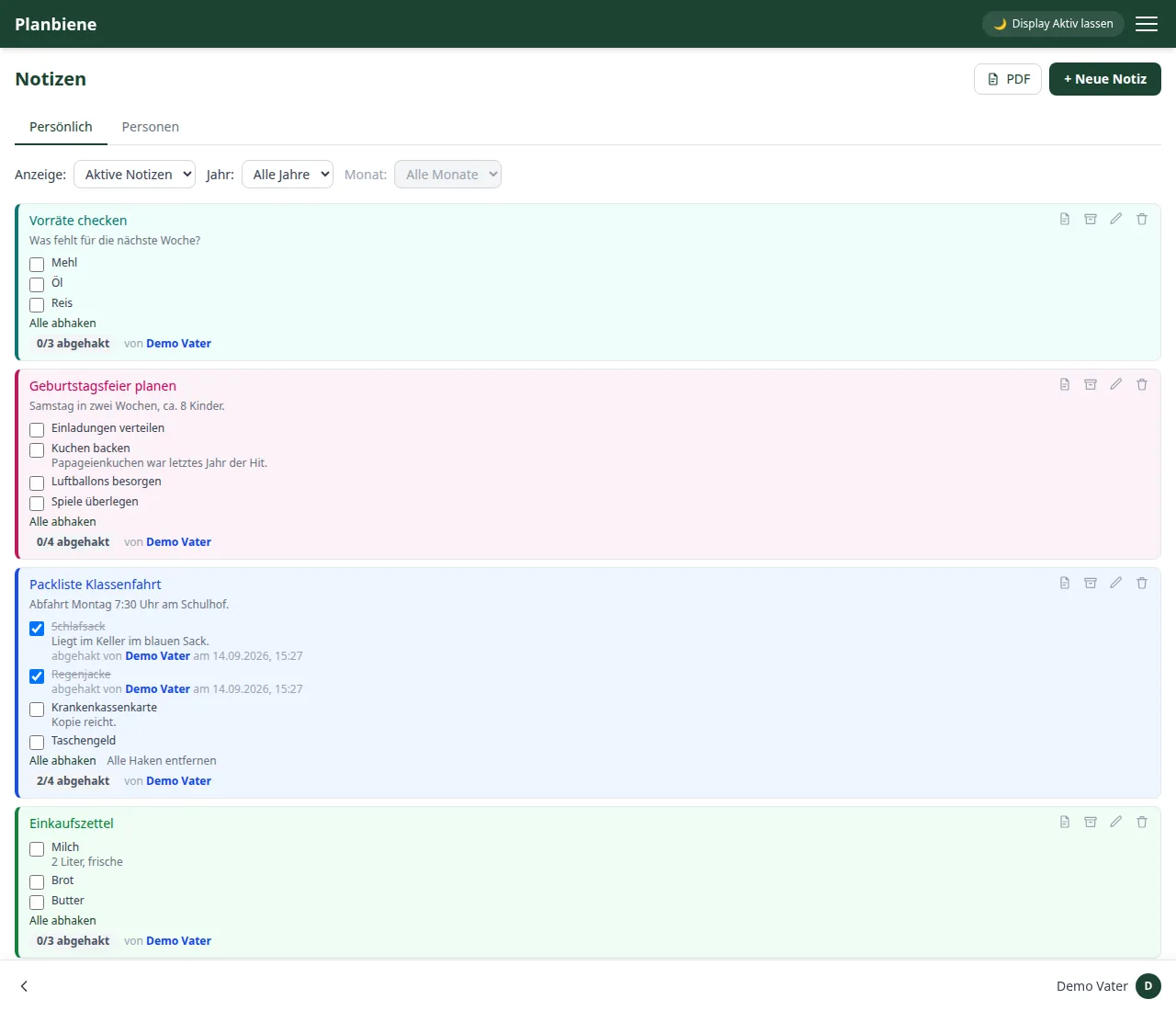
Creating a note
- Open the Notes item in the menu.
- Click + New note at the top right.
- Enter a title and optionally a text.
- Optional: add tickable items via + Add point.
- Optional: assign the note to a member of the family.
- Save – done.
Personal or assigned to a person
The Personal tab shows notes without a target person – for general things like Wi-Fi credentials or information about the house. The People tab shows notes that are assigned to one specific member of the family, with a filter by person. The assignment only serves as a filing – every note is visible and editable for every family member with access to this feature.
Adding colour
Every note can be given a colour from the colour pool – a field in the form below title and text, selected by clicking one of the colour dots. Coloured notes get a light background tint in the overview, a strong left border and a coloured title; without a selection the card stays plain white.
The colour is purely a visual sorting aid and changes no permissions. But it reaches beyond the notes list: on the home page notes with open items appear in the same colour, and it also travels into the PDF export and the share link. This is how you recognise „the green shopping list“ or „the pink birthday planning“ already by the colour edge, without reading the title.
Items to tick off
In addition to the text field, a note can keep a list of items – handy for packing lists, preparations or anything that is worked through in order. The items are optional: without them the note remains plain text, and they can be added at any time later.
Ticking off happens directly in the overview with a click on the box – the note does not have to be edited for that. Afterwards the item shows who ticked it off and when, and next to the title a counter shows how many items are already done. A second click takes the tick back again; the entry disappears with it. Anyone who needs a permanent history of completed tasks is better served by the To-dos.
Reusing lists
Below the item list there are two bulk actions: Check all sets every tick in one go, Remove all ticks makes the list completely empty again. This way the same packing list can be used again for every trip, without creating it anew.
When ticking off, items stay untouched that someone else has already ticked off – their entry still belongs to the person who set the tick. When removing, on the other hand, all entries disappear, so the list starts out clean.
Editing and deleting
Via the pencil icon you change the title, text, items or assignment of a note; via the bin icon you remove it for good. Items that were already ticked off keep their tick when editing – only an item removed here is gone along with its entry.
PDF export for ticking off
The PDF button at the top right saves all notes currently on show as a PDF for downloading – in two columns, every note with its heading, its text and an empty box before each item for ticking off with a pen. Handy for the packing list that is needed in the suitcase rather than on the phone.
If only a single note should end up on paper, use the PDF icon on the right of the note itself – next to archive, edit and delete. Then exactly that list travels into the PDF as a slip of paper, with its title as the heading.
Sharing a note
Sometimes someone outside the family should take a look at a note – the grandma working through the shopping list, or the carpool friend who should know the packing list. When editing a saved note there is a Share tab for this:
- The button creates a read-only link to exactly this one note. Whoever has it sees the title, text and items – without login, without access to anything else.
- If a link is active, the tab shows a green dot. You copy the link to the clipboard with one click.
- Revoke invalidates the link; a link that has already been passed on then leads nowhere. A newly created link replaces the old one as well.