🍲 Recipes
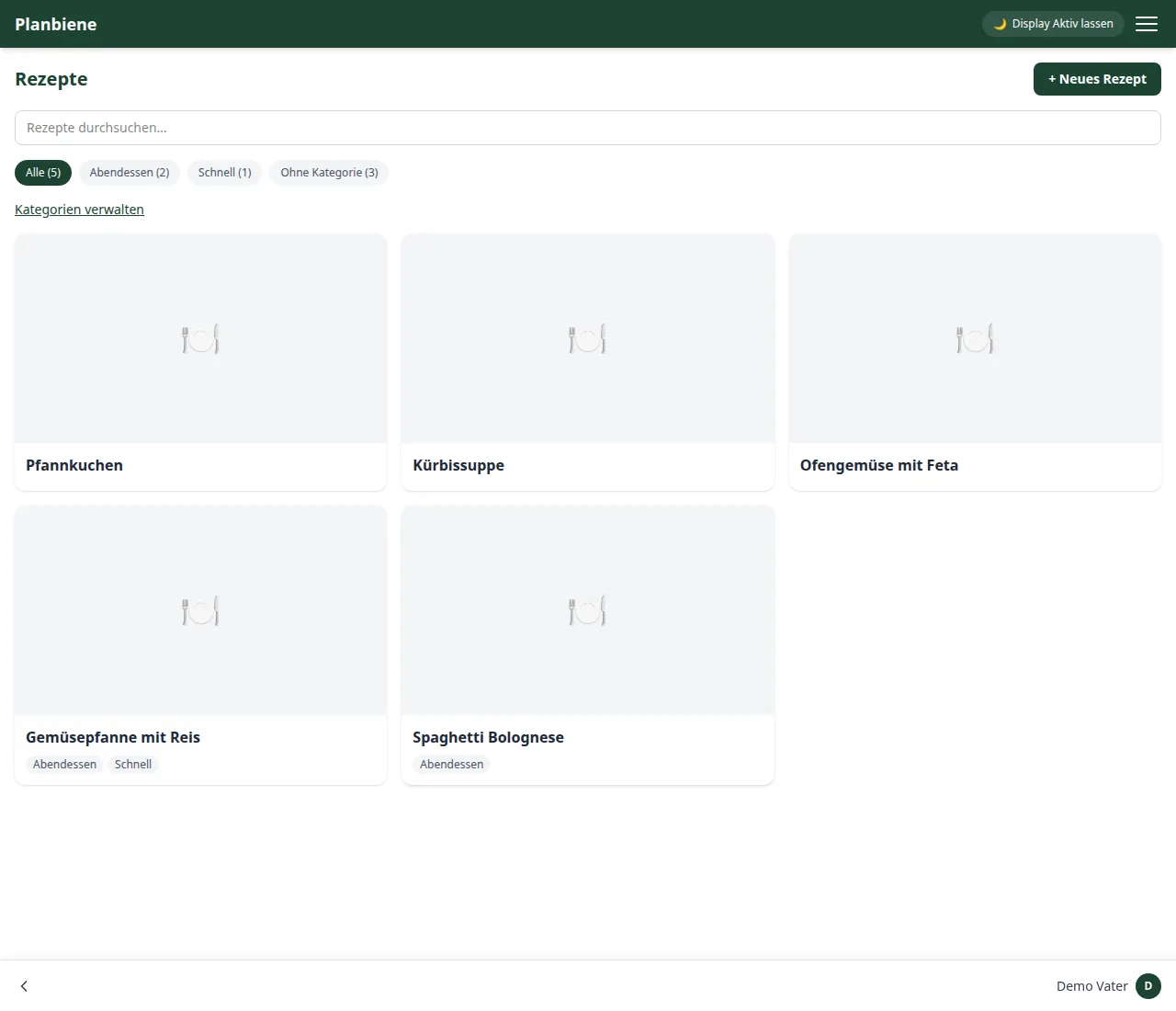
The recipe collection is the foundation of the weekly assistant and therefore also of the automatic shopping list. Every family has its own, private recipe collection – there is no shared public library in which recipes from other families appear.
Create a recipe
- Open the Recipes item in the menu.
- Click + New recipe at the top right.
- Enter a title and add the ingredients with name, quantity and unit – you can add as many ingredient lines as you like.
- Enter the preparation as running text.
- Optional: upload one or more photos of the finished dish. They appear as a gallery on the detail page – the first image becomes the thumbnail.
- Set how many people (or pieces or trays, e.g. for cakes) the recipe is calculated for by default.
- Optional: assign the recipe to one or more categories.
- Save – done.
Recipe details and number of servings
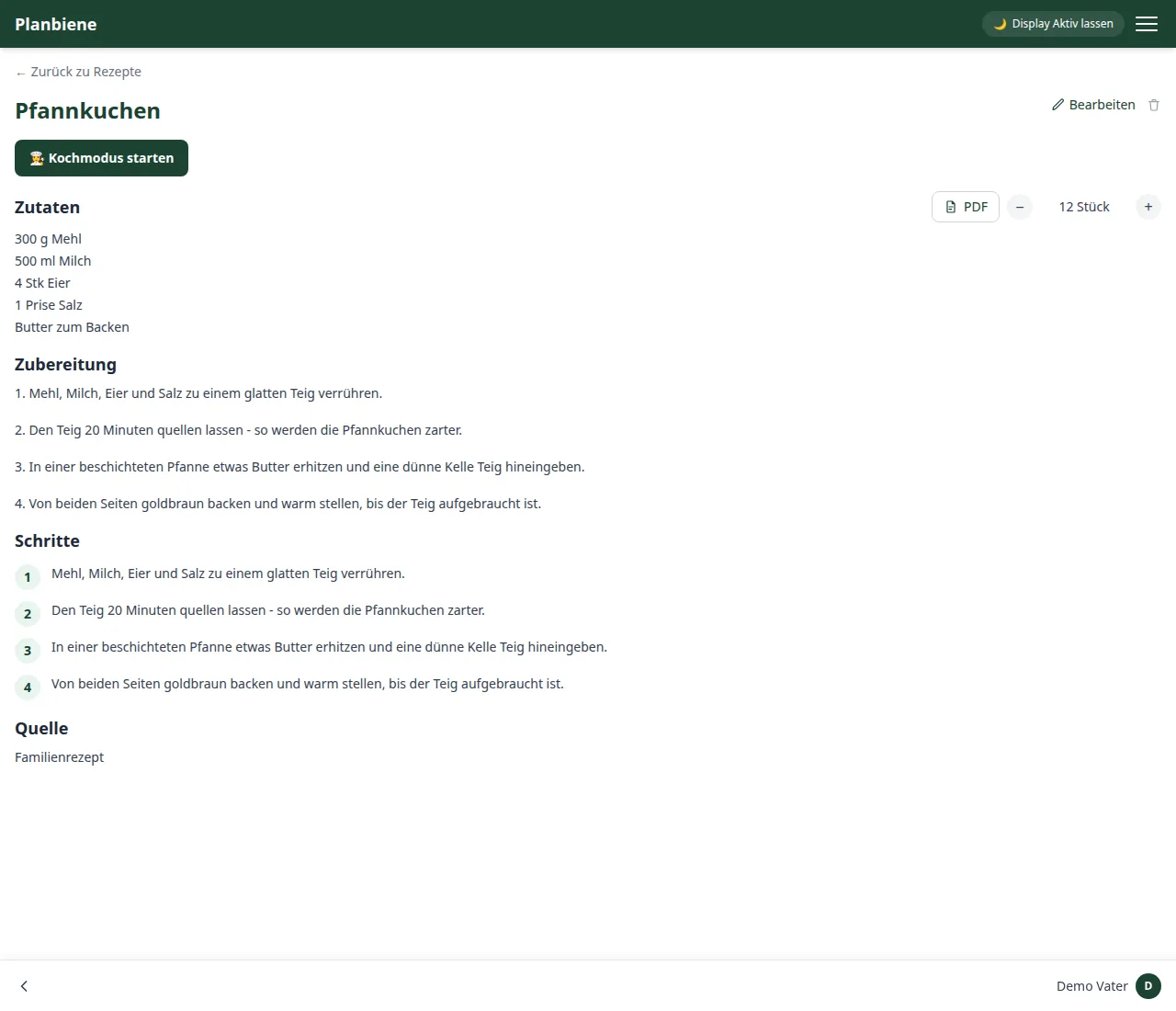
On the detail page of a recipe you can scale the number of servings up or down with the plus/minus controls. The app automatically scales all ingredient quantities along with it – handy, for example, when visitors come or you want to cook ahead for more people. The number chosen here is only a preview; the actual number of servings for a concrete cooking day is set in the weekly assistant.
Steps for the cooking mode
Below the preparation, the work steps can additionally be recorded individually – each with its own text and optionally an image. This is optional: without recorded steps, the cooking mode splits the instruction text into paragraphs itself when displaying it. With recorded steps you hold in your hands where one step ends and the next begins – and the image next to it shows what it should look like at that point. A step may also consist only of an image.
Image gallery
A recipe may have multiple images. On the detail page you flip through them as a gallery with arrows and a dot indicator; a tap opens the full-screen lightbox. The first image serves as the thumbnail in the overview and in the weekly assistant. Images are removed or swapped as needed while editing – saving takes care of everything automatically.
Where the recipe comes from
The Source field records where a recipe comes from: a web address,
a cookbook with page number or simply “from grandma”. If an address with
http or https is entered there, the detail view shows it as a clickable
link, otherwise as text. That way the original can be found again when an ingredient is unclear.
Categories
Via Manage categories in the recipe overview you create your own categories (e.g. “Vegetarian”, “Quick”, “Kids love this”) and can rename or delete existing ones. A recipe can be assigned to several categories at the same time. Via the category filter in the overview you find matching recipes faster again.
Share a recipe via a share link
Every recipe can be shared with people outside without the app and without registration: under the Share link section on the detail page you click on Create link – the app generates an individual link that you can copy and send via messenger, e-mail or social media.
Anyone who opens the link sees the recipe as a read-only view: title, ingredients for the set number of servings, preparation, steps including images and the source – plus the name of the family, so it is clear who it comes from. Nothing can be changed via the link; only that one, shared recipe is shown, never other family content. From the view you can start the cooking mode.
Via Regenerate you get a fresh link (the old one becomes invalid), and with Disable you withdraw the link completely – then it only shows an error message.
Search, edit, delete
The search field in the recipe overview filters by title. Via Edit on the detail page you change title, ingredients, preparation or categories; via Delete you remove a recipe permanently – it then also disappears from days that have already been planned.
Ingredients as PDF
The PDF button next to the Ingredients heading saves the ingredient list as a PDF for download – for the number of servings currently set, in two columns and with a small box in front of each ingredient for ticking off with a pen.
Cooking
On the detail page of a recipe you find the Cook button. It opens a full-screen mode with keep-screen-on, step-by-step instructions, serving control and tickable ingredients – ideal for a tablet in the kitchen. A page of its own explains the cooking mode in detail.