
🗓️ Children's week plan
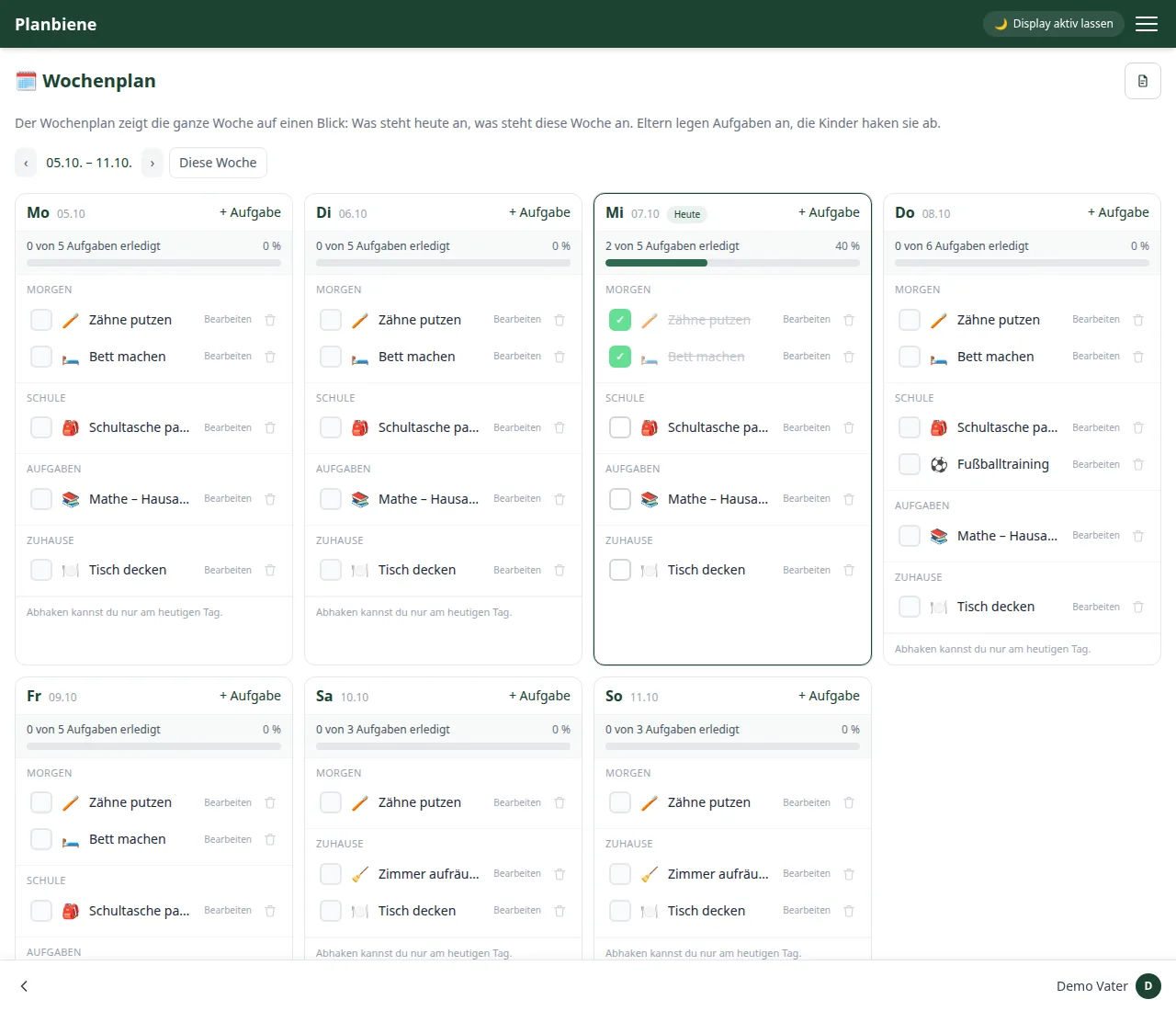
The children's week plan shows the whole week at a glance: what is on today, what is on this week. Parents create tasks, children tick them off. Together with the day split into morning, school, homework and home, everyday life becomes predictable for children – and on request you get the week as a PDF to pin up on the notice board.
Who does what?
Creating a task
- Open the children's week plan in the menu under 🗂️ Modules › 🗓️ Children's week plan.
- Select the week at the top (‹ previous week, “This week”, next ›).
- Tap + Task on a day.
- Give it a name, e.g. Brush teeth, and choose a symbol from the selection (🪥 🛏️ 🎒 📚 🧹 ⚽ 🎹 🐕 🚿 🍽️ 🏃 🎨).
- Choose the section: Morning, School, Homework or At home.
- Decide for which child the task applies, or whether it applies to all children.
- Choose how often it applies: Every week or just once (then with a date).
- Pick the days of the week – quick buttons like “Every day” or “Monday–Friday” do it in one tap.
- Optional: At whose place? with doesn't matter, Father or Mother. These tasks get a coloured “Father”/“Mother” band – handy when care is shared (e.g. music lessons only in Dad's week).
- Optional: a note, e.g. “use the blue toothbrush”.
- Save – the task appears immediately on all selected days.
Ticking off and progress
Each day card counts how many tasks are already done: “X of Y tasks done”. When everything is done, the card celebrates with “All done! 🎉”, a fully completed week with “This week done! 🏆”. Tasks can also be edited or deleted later – a deleted task disappears from all weeks.
On the home page
The home page has its own tile for this. Parents see the children's week plan with the tasks of all children and a short done list, children see their open items as “Today in the week plan”. Via “Details” you go straight to the full week plan.
The week as a PDF
Using the PDF icon at the top right of the week plan you generate a print-ready weekly view: A4 landscape with the sections morning, school, homework and at home – the boxes are large enough to tick by hand. Four options:
- Tick tasks that are already done – the week appears as it currently stands.
- Blank sheet to tick by hand – all boxes open.
- Coloured sections – morning, school, homework and at home in different colours.
- Note fields to fill in – a “Notes” footer stays blank.