🔪 Cooking mode
The cooking mode is a full-screen mode that keeps things in order while you cook a recipe: step by step through the instructions, ingredients to tick off, and the display stays on – ideal for a tablet in the kitchen.
Start the cooking mode
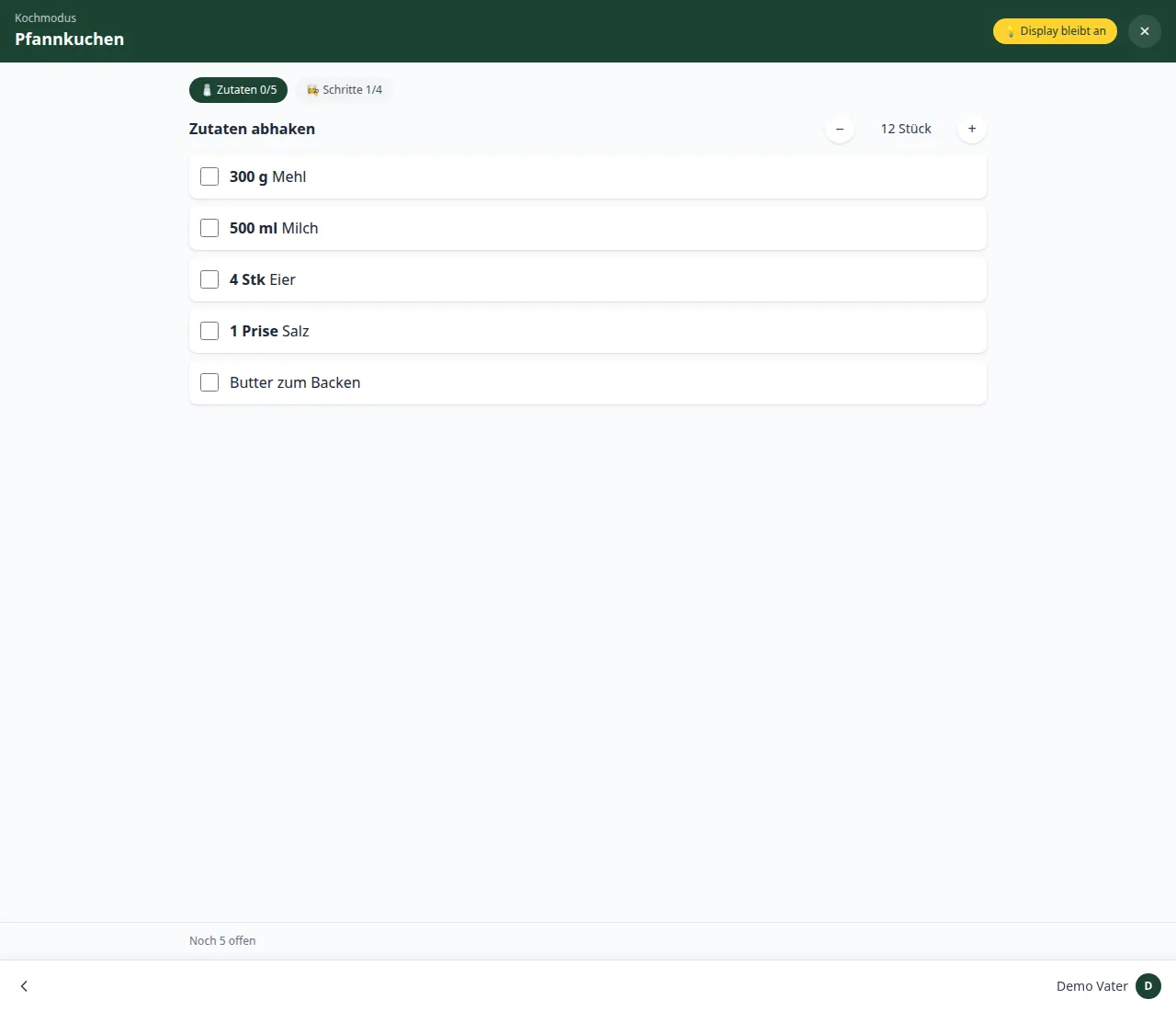
On the detail page of a recipe you find the Cook button. Tap it, and the app switches to full-screen mode with two tabs:
- Ingredients – all ingredients with quantities for the chosen number of servings.
- Steps – the preparation steps shown one after another in large size.
The cooking mode starts directly with the steps – the ingredients were already visible on the detail page; while cooking, what counts is the instructions. You switch between the steps with the arrow keys or by swiping left and right (practical with greasy fingers or on the tablet).
Timer
Via the ⏱ button at the top of the cooking mode you start a kitchen timer – without leaving the recipe page. Preset times (1, 2, 3, 5, 10, 15 and 30 minutes) are selected with a tap; with − / + you fine-tune in one-minute steps – even while the timer is already running. Start, pause, resume and reset sit right next to it.
When the time has run out, the timer announces itself with a triple ringtone and vibration – loud enough to be heard from the stove as well. Afterwards it shows up in the header as a red tile “🔔 Time's up!”.
Interrupt and resume cooking
The cooking mode does not pause when you switch views. As soon as you have cooked once, a cooking tile appears at the top of the header – even when no timer is running. A tap on it jumps back to exactly the view you left off in. While a timer is running or paused, the tile counts the remaining time down (⏱ or ⏸); a tap opens the timer card directly. Cooking is ended via the × button at the top of the cooking view or – after the last step – via the Done 🎉 button. Tapping “Done” explicitly ends the cooking session and removes the cooking tile from the header.
Display stays on
As long as the cooking mode is open, the display is kept awake for the app – a badge “💡 Screen stays on” indicates this. That way the phone or tablet does not go into power-saving mode while cooking. When you leave the cooking mode, the lock is released.
If your device does not support the screen lock or it is blocked, an honest notice appears (“Screen may turn off”).
Tick off ingredients
Tap an ingredient line to mark it as done. At the top a counter shows the progress (“ticked / total”). Via Reset ticks you clear all ticks at once.
You can adjust the number of servings freely (minimum 1) – all ingredient quantities are scaled proportionally and displayed in the unit of the recipe.
Step by step
Steps are shown one after another in large size (“Step X of Y”) – with image and text, easy to read across the kitchen. If a recipe has no recorded steps, the free-text instructions are automatically split into individual steps – recognisable by the note “split from the instructions”.
At the bottom, a clickable row of dots shows the progress: the current step is highlighted, completed ones dimmed. With the left/right arrow keys you flip between the steps – practical for a keyboard on the kitchen tablet or greasy fingers.
Zoom in on images
Step images can be enlarged with a tap – a full-screen lightbox shows the image at full size. Tapping again closes it.
Progress is saved
Your progress (ticked ingredients and current step position) is stored per recipe on the device. An accidental reload therefore forgets nothing. Ticking is matched by ingredient name, so the ticks stay correct even when the recipe changes.
Cook via the share link
Anyone who has received a recipe via a share link can start the cooking mode directly from it – without logging in. The ingredients can be ticked off in this view; the progress is only remembered on the device and is not reported back to the family.