✅ To-dos
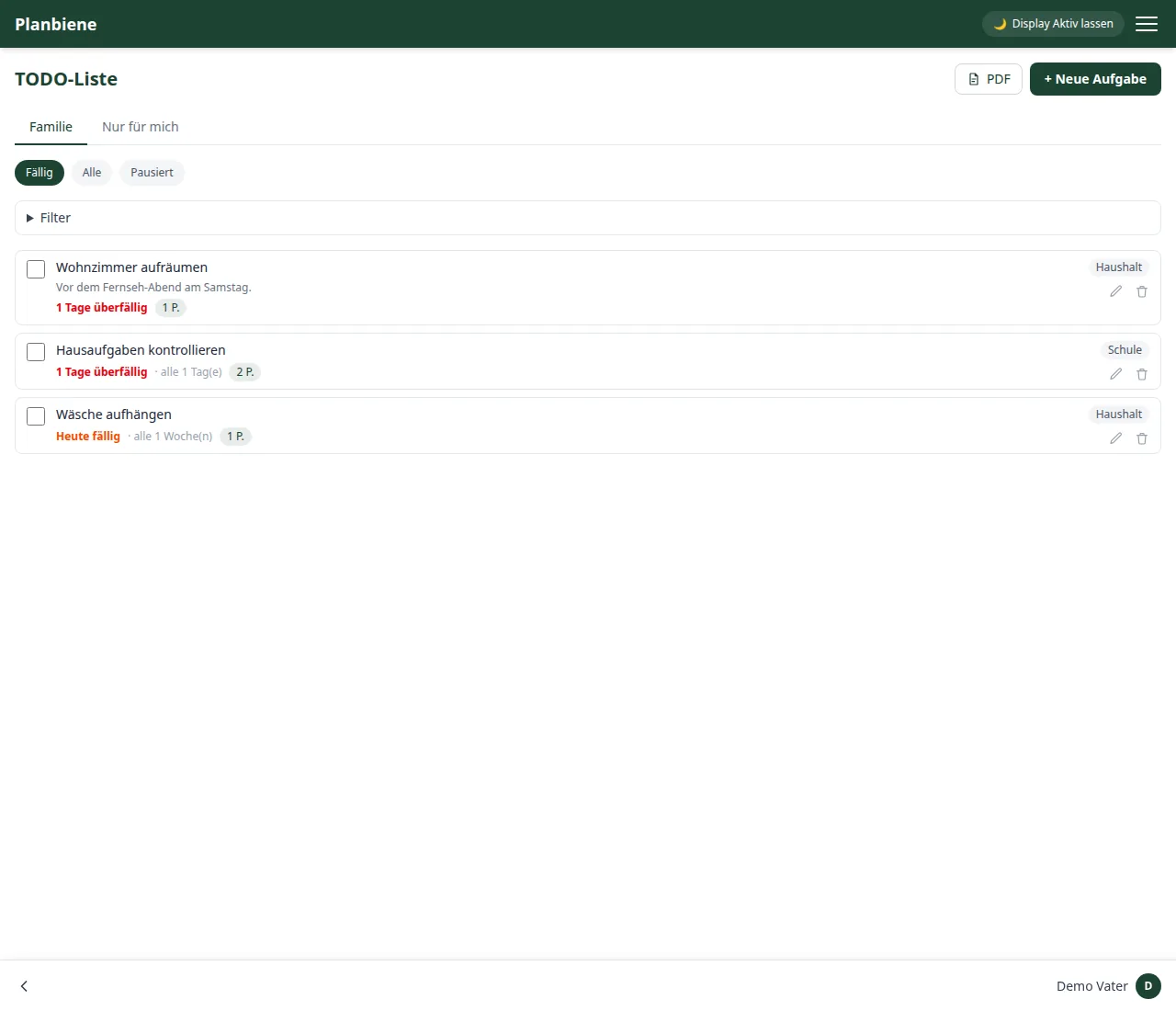
To-dos come in two variants: Family – visible and editable by everyone – and Private only – visible exclusively to the person who created them, not even to other members of your own family. Both variants run in the same list, separated by two tabs.
Creating a task
- Open the To-do list item in the menu and choose the matching tab (Family or Private only).
- Click + New task.
- Enter a title, optionally notes and a due date.
- Choose the visibility: Family or Private only – you can change this at any time later.
- Optionally assign a category.
- Optionally mark it as a recurring task (see below).
Completing and recurring tasks
A click on the checkbox completes a task. For recurring tasks (e.g. “every 1 week(s)”) the due date jumps automatically to the next date when you tick it off, so the task stays in the list permanently.
Recurring tasks can also be ticked off early – if the lawn has just been mown on Thursday instead of only on Saturday. To do so, show the future tasks via Filter. Because the next date is then recalculated from today and the rhythm shifts with it, the app asks first and names the new date.
Collecting points
Every task is worth points – one by default, freely configurable when creating or editing (0 to 100). The more effort a task takes, the more points are worth it: mowing the lawn may well be eight points, taking out the rubbish one. Whoever ticks the task off receives the points – not the person who created it.
Recurring tasks bring points again with every tick-off. If a completion is undone, the points disappear too. If you change the point value of a task later on, already collected points stay unchanged – nothing changes retroactively.
The points overview
The 🏆 Points menu item shows what has accumulated in the family: your point total, the ranking of all family members, the trend over time, what the points are earned for (by category) and the most recently completed tasks. At the top you choose the time period – this week, this month, this year or everything together.
Categories
Via Manage categories you create categories like “Household” or “Appointments”, rename them or delete them. Categories belong to the family and are available in both tabs.
Filtering
Via the expandable Filter section you show future and already completed tasks, filter by category or display only paused tasks. Without a filter you only see what is currently due or overdue – that keeps the list tidy in everyday life.
Pausing tasks
When editing a task you can mark it as Paused. Paused tasks disappear from the home page and the normal list without you having to delete them – handy for tasks that are not relevant right now but should become active again later.
PDF export for ticking off
The PDF button at the top right saves the selection currently on show as a PDF for download – two columns, with an empty box before each task for ticking off with the pen. Below each task are the due date, the repetition, the points and the category. Which section was printed (tab and category filter) is stated in the header of the PDF.