
📅 Weekly assistant
The weekly assistant shows you Monday to Sunday at a glance and lets you decide for each day whether you cook and which recipes come into play. It is the foundation for the automatic shopping list.
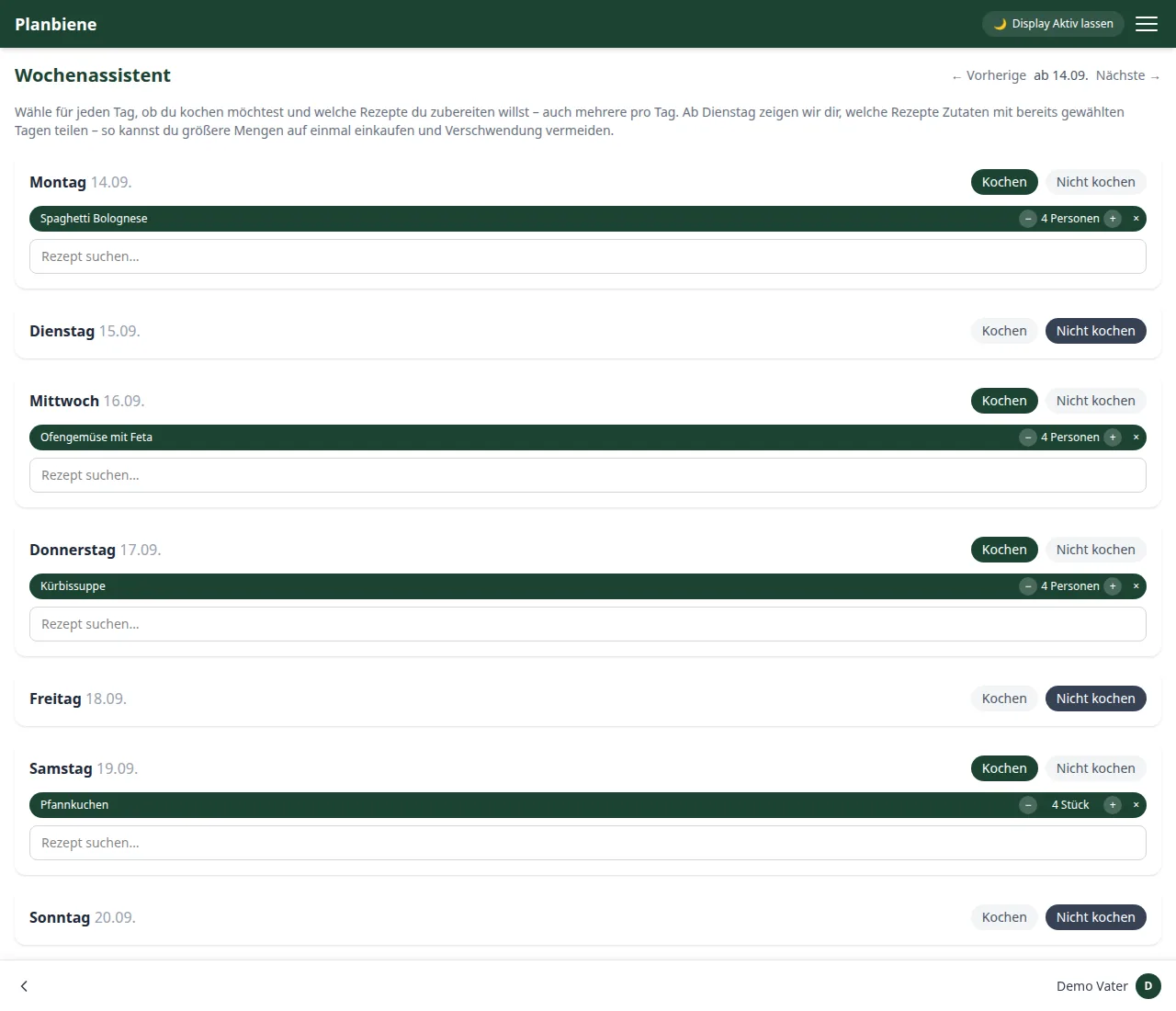
Planning a cooking day
- Open the Weekly assistant item in the menu.
- Choose Cook instead of Do not cook for a day.
- Search for a recipe from your collection in the field below and add it.
- Use the plus/minus controls to set how many people are actually cooked for on that day – independently of the recipe's default number of servings.
- You can also enter several recipes for one day at a time, e.g. main course and dessert.
Switching between weeks
Using ← Previous and Next → at the top of the page you page through the weeks. Each week is planned separately; weeks you have already planned remain when you page on and come back later.
Dishes in the family calendar
On request every cooking day additionally lands as an all-day appointment in the family calendar – then the whole family sees what is on offer in their familiar phone calendar without opening the app. The option is off by default. You can switch it on in the family administration in the section Calendar: below the list of stored calendars you will find the field Enter planned meals in. The selection takes effect immediately; there is nothing to save.
If you change the plan, the appointments move with it: a cooking day that is dropped disappears again, a changed one is overwritten – so no duplicates are created. If you switch the option off again, the entries of the current and coming weeks are removed from the calendar; past weeks remain as a history.
Spotting shared ingredients
As soon as you add another recipe from the second planned day onwards, the app shows you a hint when ingredients overlap with days you have already chosen. That way you see at a glance where larger quantities can be bought in one go, instead of buying small amounts of the same ingredient on several days.