
How do I create the weekly plan and the shopping list for it?
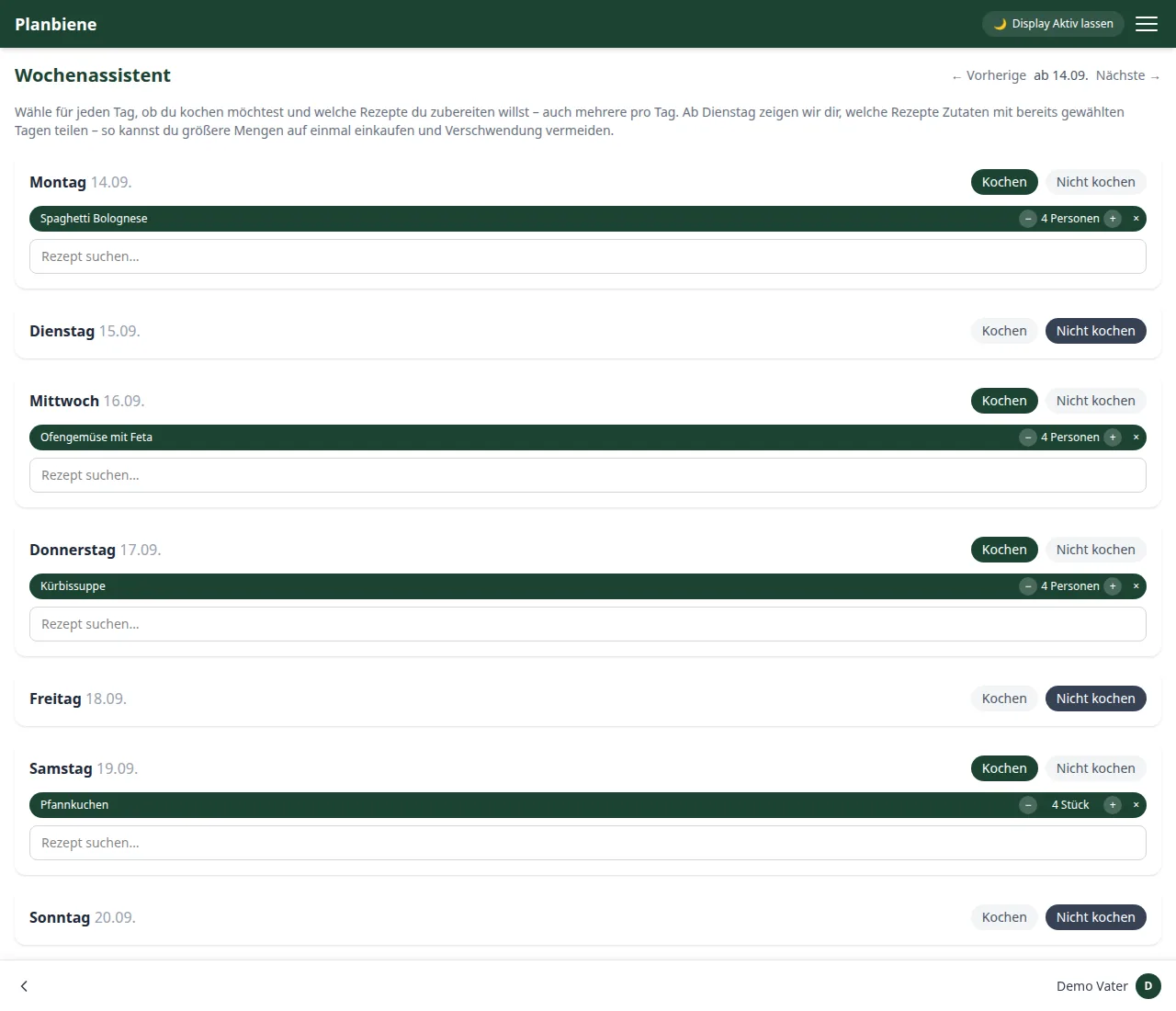
The Weekly assistant shows Monday to Sunday at a glance and lets you decide for each day whether you cook and which recipes come into play. The neat part: the Shopping list adds up the ingredients of all planned days automatically – you never have to work out yourself again when which ingredient will be needed next.
Step by step
- Open the Weekly assistant item in the menu.
- Choose Cook instead of Do not cook for a day.
- Search for a recipe from your collection in the field below and add it – several dishes per day are possible too, e.g. main course and dessert.
- Use the plus/minus controls to set how many people are cooked for on that day.
- With ← Previous and Next → you plan further weeks.
The shopping list fetches the ingredients by itself
- Open the Shopping list item in the menu.
- At the top you select the week – it lists all ingredients of the planned recipes, with the quantities already added together.
- Every item shows which recipe it comes from and for how many people.
- Everything that is not in a recipe (toilet paper, coffee…) you enter manually via Add item….
- While shopping simply tick things off – at the bottom right Remove done items clears all ticks in one go.
Changed it later? If you change a cooking day (different recipe, different
number of servings), the shopping list recalculates the quantities automatically. Already
ticked-off entries are kept.
Good to know
- If a second recipe uses the same ingredient, the quantity is added together – ideal for spotting where larger quantities are worth buying in one go.
- The central list is fixed: only the ingredients from the weekly plan end up in it. Own lists (drugstore, hardware store…) you create alongside it.
- Under PDF at the top right you get the list as a sheet for ticking off with a pen.
More about this is in the Handbook: Weekly assistant and in the Handbook: Shopping list.