
📚 Timetable
A weekly plan for every child in the family: which lessons take place when, in which room and what else there is to know about them. The plan is created and maintained by the whole family together – it is meant above all for a glance the evening before: What is on tomorrow, and does anything still have to be packed?
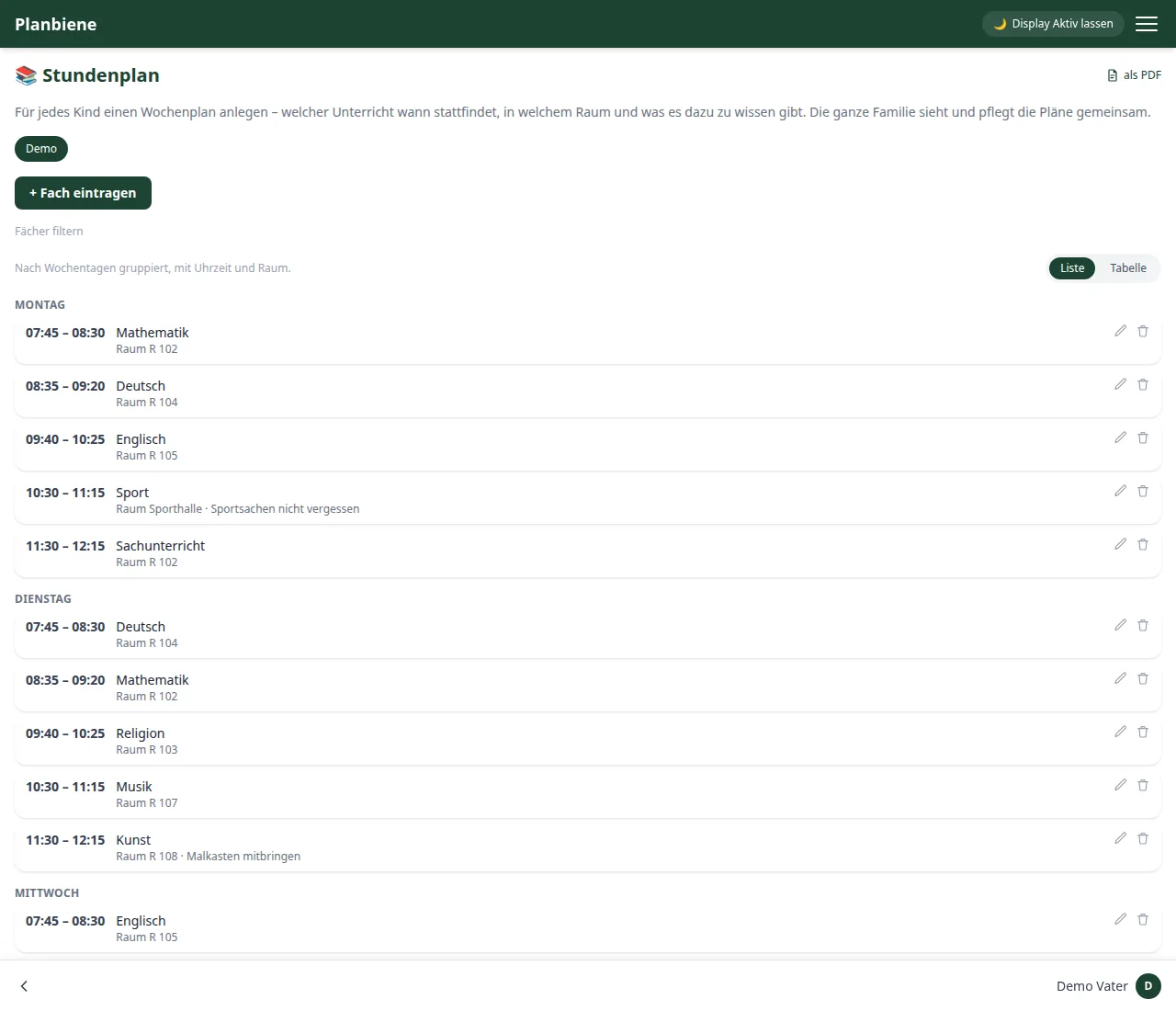
Adding a subject
At the top you first select the child – if the family has several children, each one has its own tab. Then you create a lesson with + Add subject:
- Weekday – Monday to Friday.
- Time – start and end of the lesson.
- Subject – for example mathematics. The name is free, but it makes sense to spell it the same way throughout the week.
- Room – optional, such as „R 102“ or „Sports hall“.
- Note – optional, for everything else: „don't forget the gym kit“, „test announced“, which books have to come along.
List or table
Above the plan on the right you switch between two views:
- List – grouped by weekday, one below the other. On the phone the clearer form, because every lesson gets its own row with room and note.
- Table – the classic timetable: rows are the times, columns are the weekdays. Good for an overview of the whole week and for printing.
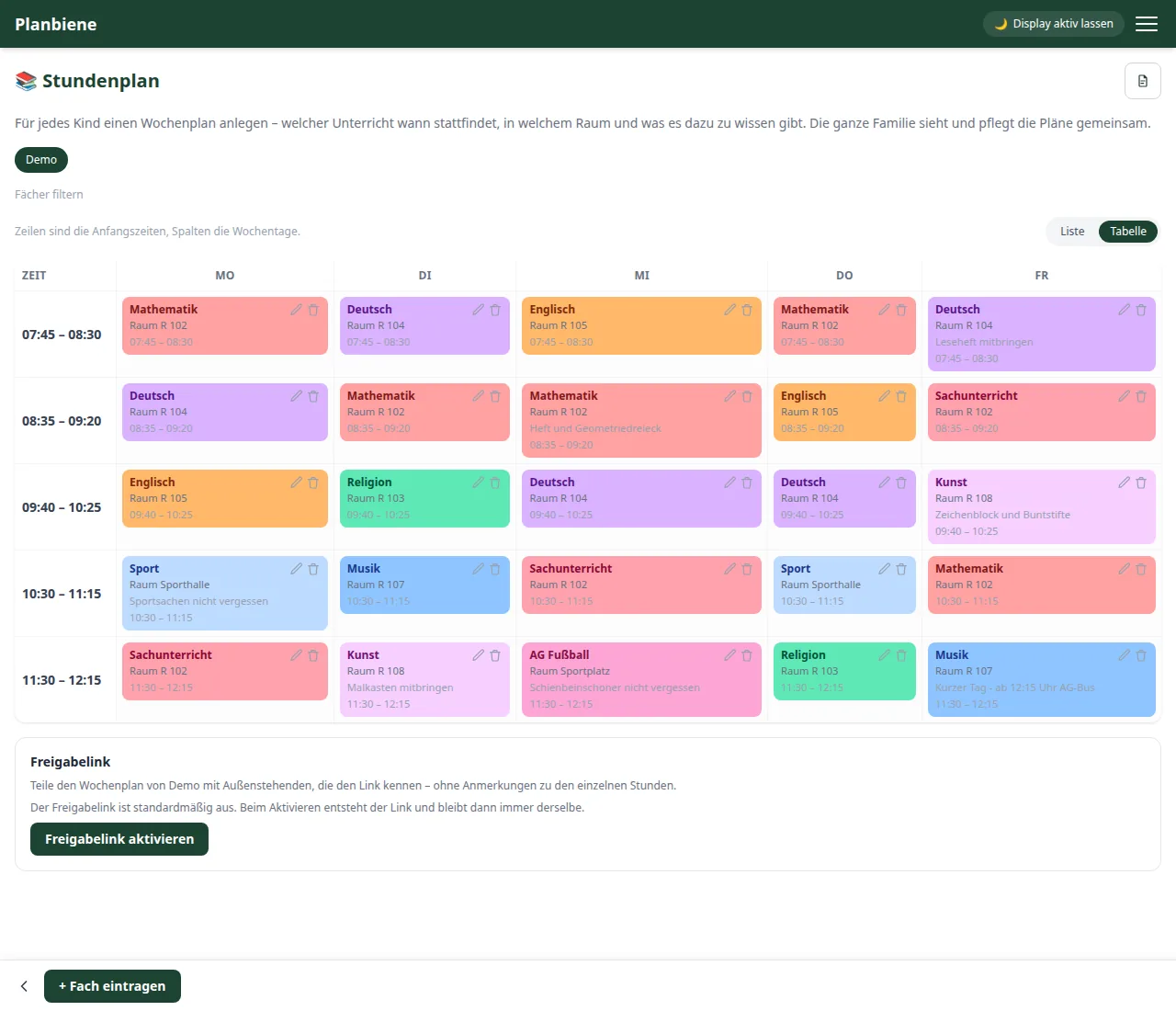
Your choice is saved and applies again the next time you open it. With Filter subjects you hide individual subjects – handy when all you want to know is when sports is this week.
Printing as a PDF
Via as PDF you get the weekly plan of the selected child for printing, in the view currently set. The printout always contains the complete plan – an active subject filter only changes the display on screen, not the PDF. This way the plan travels to the noticeboard or into the school bag.
On the home page
If the timetable is enabled, the home page shows the current week in brief and highlights today's day. A click on Details takes you to the full plan. Whether the tile appears is up to you in Settings.