
Setting up the showcase on a tablet
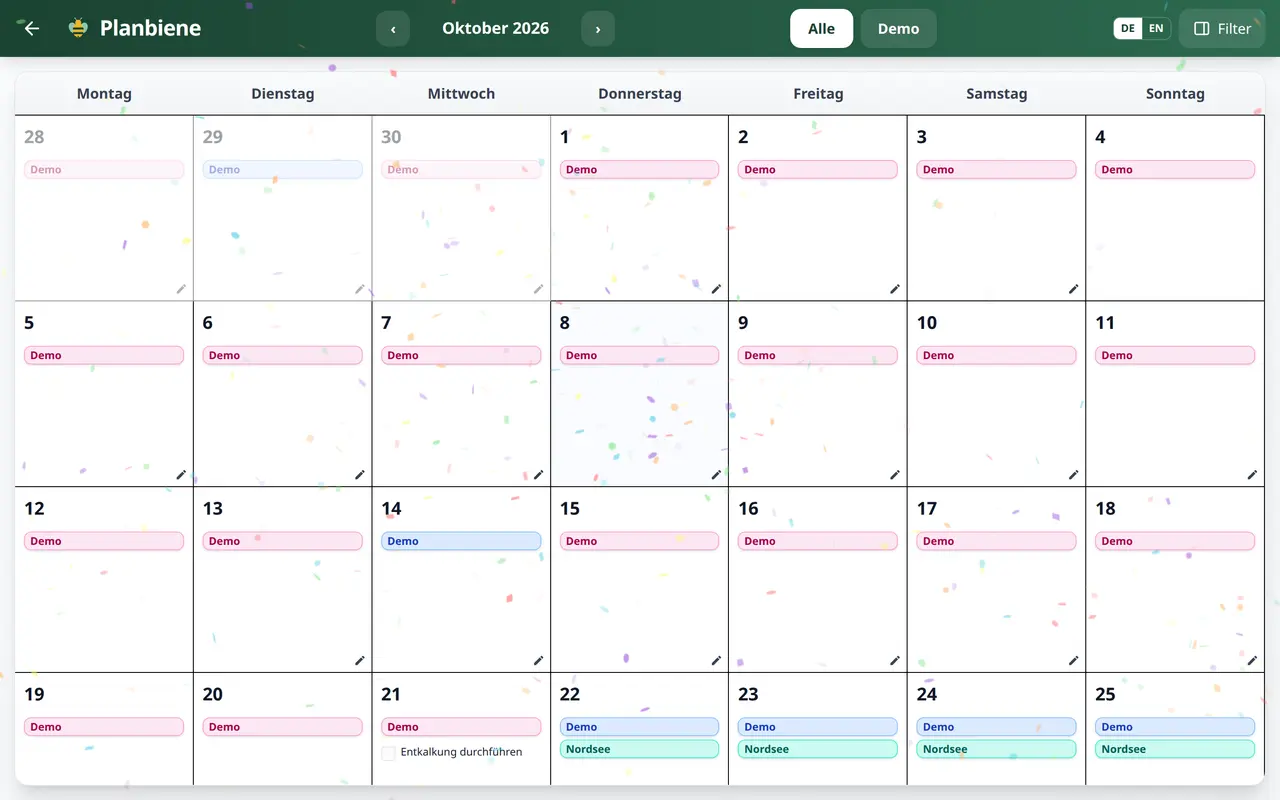
The showcase is the month calendar at full screen – made for the tablet that lives in the kitchen or the hallway. In five steps it turns into a family calendar that everyone can see and on which the children can tick off their tasks.
Step by step
- Open app.planbiene.de in the tablet's browser and sign in. For a device the children walk past, a dedicated account makes sense – the showcase never shows more than that person may see.
- Add the app to the home screen: in the browser menu “Add to home screen” (on Safari: Share › Add to Home Screen). From there Planbiene starts full screen, without an address bar.
- Open the 🖼️ Showcase in the menu and turn the tablet to landscape.
- Use Filters at the top right to choose what should be visible – for example sick days off, waste collection on. The selection is remembered on the device.
- Optional: narrow it to one child with the buttons at the top if the tablet lives in a child's room. “All” shows the whole family again.
Using it every day
- Changing the month: ‹ and › next to the month name, or swipe left or right with your finger.
- Back to today: tap the month name.
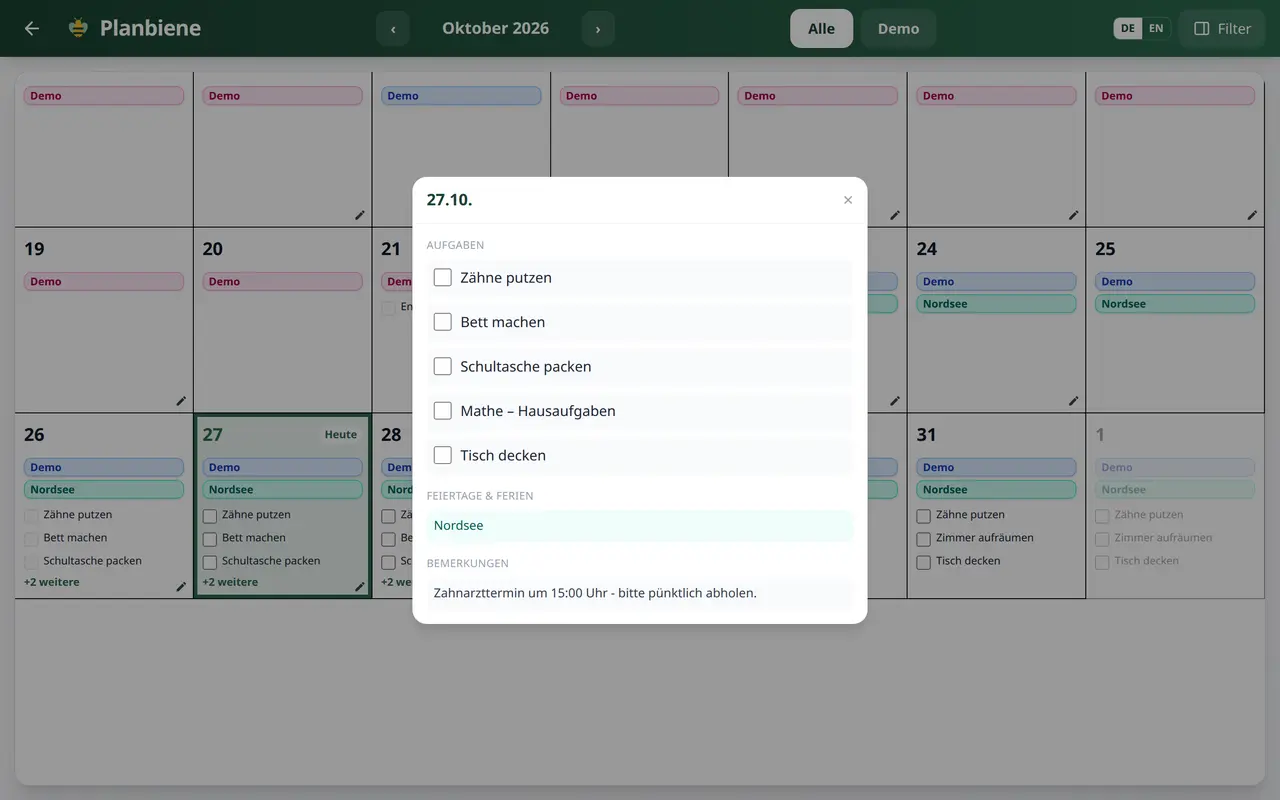
- Viewing a day: tap a day cell. Days without content are not clickable – nothing happens there, which is exactly right.
- Closing the day dialog: via the ×, a tap next to it or Esc on a connected keyboard.
Ticking tasks off
Week plan tasks and planned family to-dos can be ticked off directly in the showcase: in the day cell a tap on the row is enough, in the day dialog a tap on the task. Ticking works for today and all coming days – past days stay display only, so nobody rewrites the past by accident.
Tablet keeps going dark? Set a longer screen timeout in the device settings
or enable a screensaver mode for the calendar. Planbiene itself does not wake the screen.
How to try it out: In the 🎬 Demo mode on the login page, log
in as father or mother and open the showcase in the menu. The sample family has a vacation,
custody days, waste collections and tasks in the week plan – enough to try out the filters,
the day dialog and ticking off at your leisure.
More on this in the Handbook: showcase and the Handbook: children's week plan.