
🖼️ Showcase
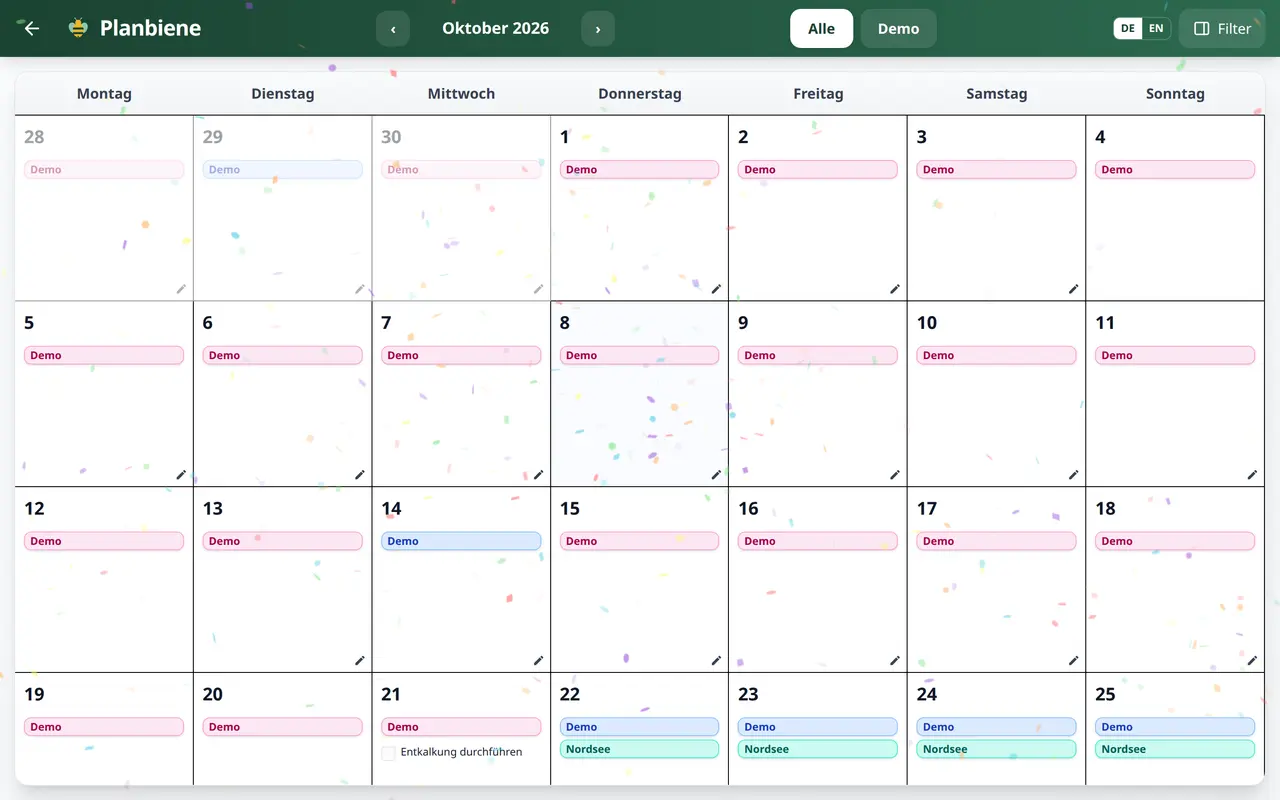
The showcase is the month calendar at full screen: no sidebar, no menu, just the grid with every day. It is made for the screen everybody walks past – the tablet in landscape in the kitchen, the monitor in the hallway, an old tablet on the wall. What it shows is exactly what the signed-in person is allowed to see: custody days, vacations, public and school holidays, events, waste collection, notes, sick days – and the tasks from the week plan.
Opening and leaving it again
You find the showcase in the menu under 🖼️ Showcase. Because it fills the whole screen you do not need a kiosk mode of your own: the tablet simply stays in that view. The arrow at the top left takes you back to the normal app, and the back button of the browser or tablet works just as well.
What the day cells contain
- Custody: blue and pink bands show which parent the child is with that day – side by side for several children, a crossed-out cross marks a blocked day.
- Vacation: a teal band with the name of the vacation, public holidays in red, school holidays in yellow.
- Events from the connected calendars (purple) and waste collection in grey, with the bins of that day.
- Tasks and to-dos: the week plan tasks of the day with a box to tick, plus planned family to-dos on their due date.
- Sick days as a red dot, notes as a small pencil icon at the bottom right.
The day dialog
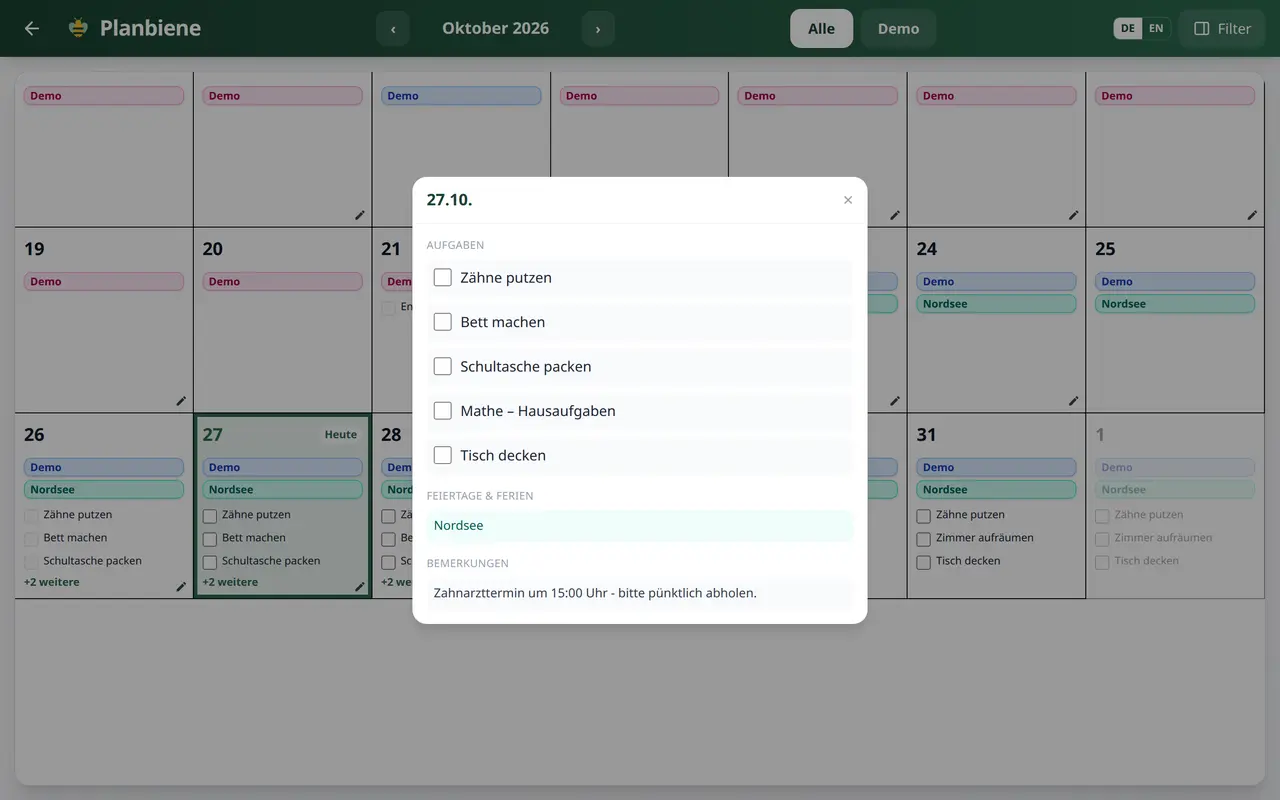
A tap on a day cell opens the day in full: all tasks and to-dos, the public holidays, school holidays and vacations, every event, the waste collections and all notes. You close it with the ×, with a tap next to it or with Esc – on a tablet the expected gesture when there is no mouse at hand. Days without content deliberately stay not clickable; an empty window over an empty box helps nobody, and the custody colour still shows who the day belongs to.
Ticking off in the calendar
Week plan tasks and planned family to-dos can be ticked off right in the showcase – in the day cell as well as in the day dialog. So that nobody accidentally rewrites the past, the same rule applies as in the week plan: today and all coming days can be ticked, past days stay display only. There the boxes are greyed out and locked. In the day cell the whole row is tappable, not just the small box – with a finger on a tablet that is the difference between “works” and “does not work”.
Swiping, filtering, language
- Changing the month: the ‹ and › arrows next to the month name – or simply swipe left or right with your finger.
- Back to today: a tap on the month name.
- Narrowing to one child: the buttons at the top show “All” or a single child; the choice also applies to the day dialog.
- Filters: the button at the top right hides what you do not need right now – custody, vacations, public holidays & school holidays, events, waste collection, sick days, notes. The selection is remembered, “Show all” brings everything back.
- Language: the DE/EN switch at the top right changes the labels of the calendar too.
Who sees what?
The showcase is there for everyone, but it never shows more than the respective person may see. Children see their own week plan and the custody days, but no modules that are locked for them. Anyone who is not a calendar manager still sees the events – only setting them up requires the permission. In short: what is on the kitchen tablet is meant for the person at the tablet, not for the whole family.