
How do I record a child sick day?
If a parent stayed home because of a sick child, you record this day in the Child sick days section. That includes the answer: the child, the date and who was with the child that day. At the end of the year the overview automatically shows you the total per parent – without you having to count anything.
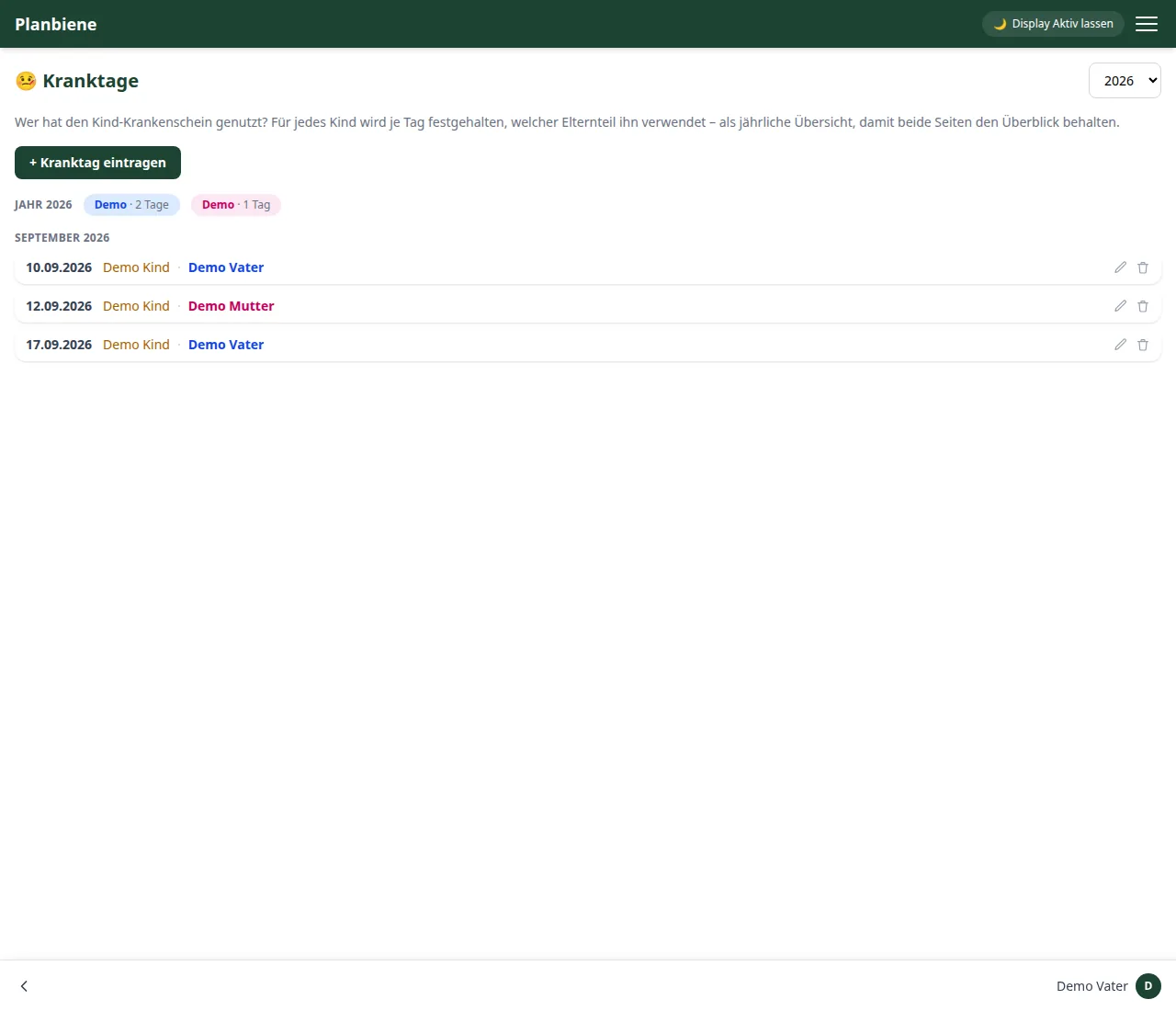
Step by step
- Open the Child sick days entry (🤒) in the menu.
- Click + Record sick day in the bar at the bottom.
- Choose the Child.
- Choose the Day – one entry per day of illness. Three days of illness therefore mean three entries.
- Choose the Parent – who stayed with the child that day or used the child sick note.
- Optional: add a Note, for example the diagnosis or whether the doctor's note is already with the insurance.
- Click Save.
How to read the yearly overview
At the top right you select the year; the years offered are those in which something has been entered. Below the year selection stands the total per parent – with several children additionally per child –, below that follow the individual days grouped by months, each with child, parent and note. Names are coloured by family role, as everywhere in the app.
Who is allowed to record?
More details and what the overview is meant to do for separated parents can be found in the Handbook: Child sick days.